Canvas Expander: AI outpainting to expand an image
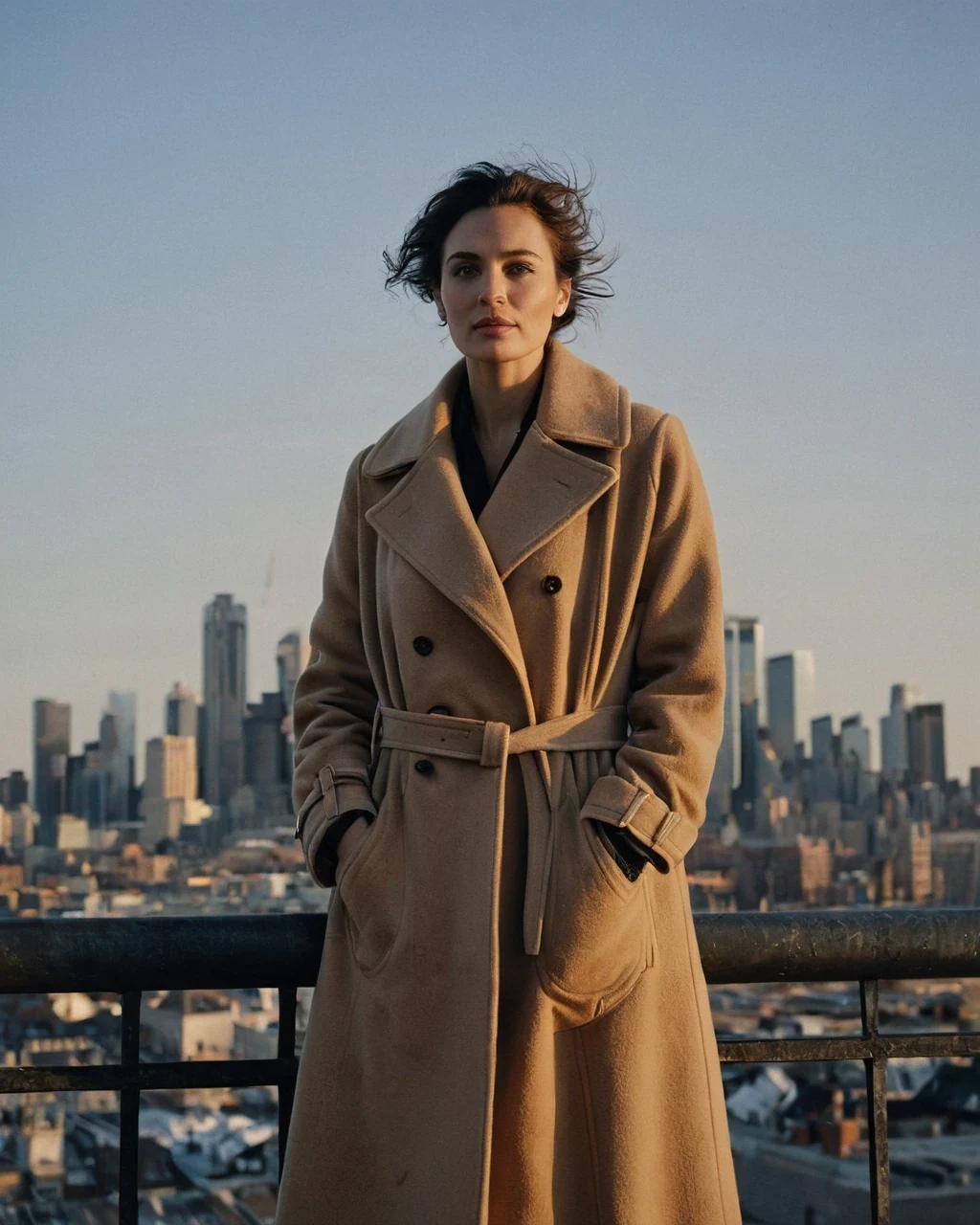
A licensing slot rarely matches the crop you rendered. Rather than reshoot for a wider layout, extend the frame you already have. The rule is simple: The model can only continue what it can already see, so expand into empty space, never away from a cut-off body. Start in the studio.
One direction, one run
Expanding all four sides at once means four guesses compounding, and the corners are where it falls apart.
- Pick a side. Extend, check, then extend the next if you still need it.
- Small steps. 25% reads seamlessly; 50% starts inventing.
- Expand before you enlarge, never after.
What the model has to work with
It reads the pixels at the edge and continues them. What sits there decides everything.
| At the edge | Result |
|---|---|
| Plain wall or sky | Seamless |
| Soft bokeh | Excellent |
| Floor or horizon line | Good, the line continues |
| Regular pattern | Mixed, the grid can drift |
| A cropped arm or leg | Poor - It will invent a limb |
Where it sits in the order
Expansion changes composition, so it belongs with the other compositional decisions and well before the final enlargement.
- Fix the room first with the scene tool.
- Expand to the layout you actually need.
- Enlarge last with the upscaler - Expanding an upscaled file costs more and holds worse.
Extending a frame
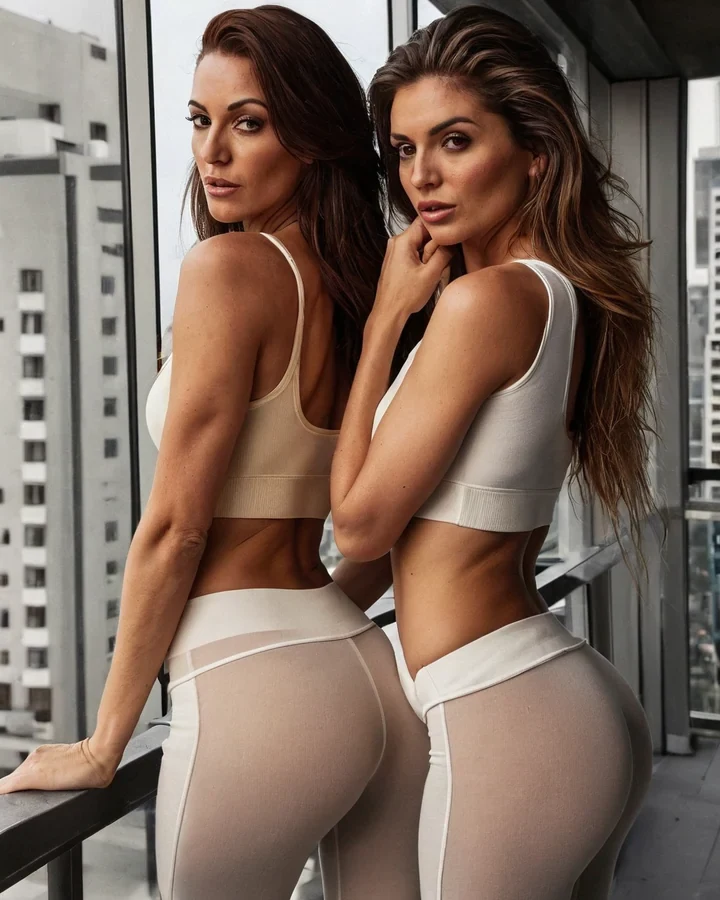
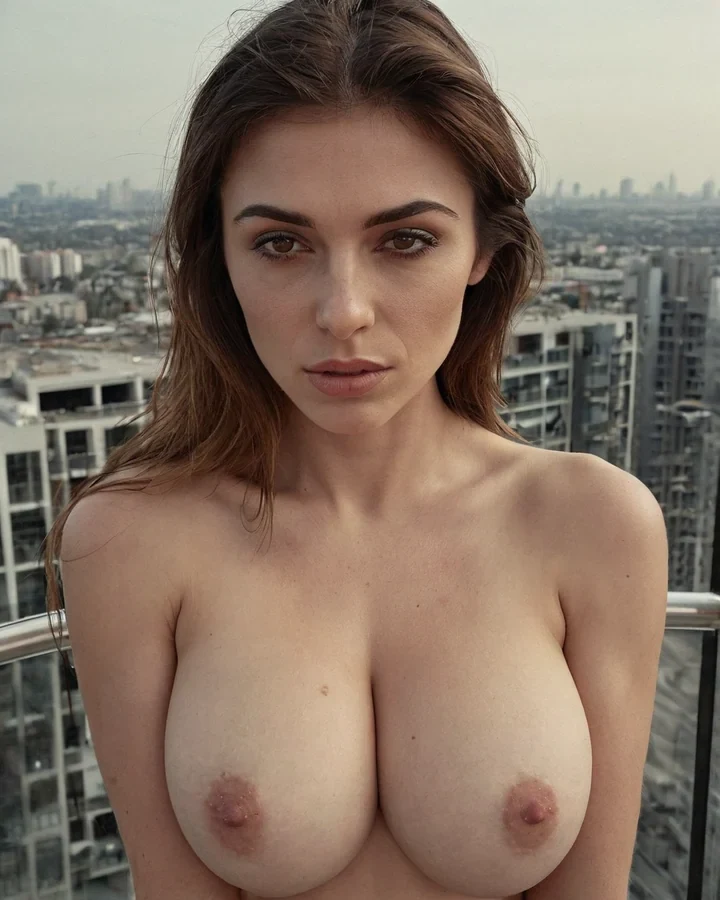
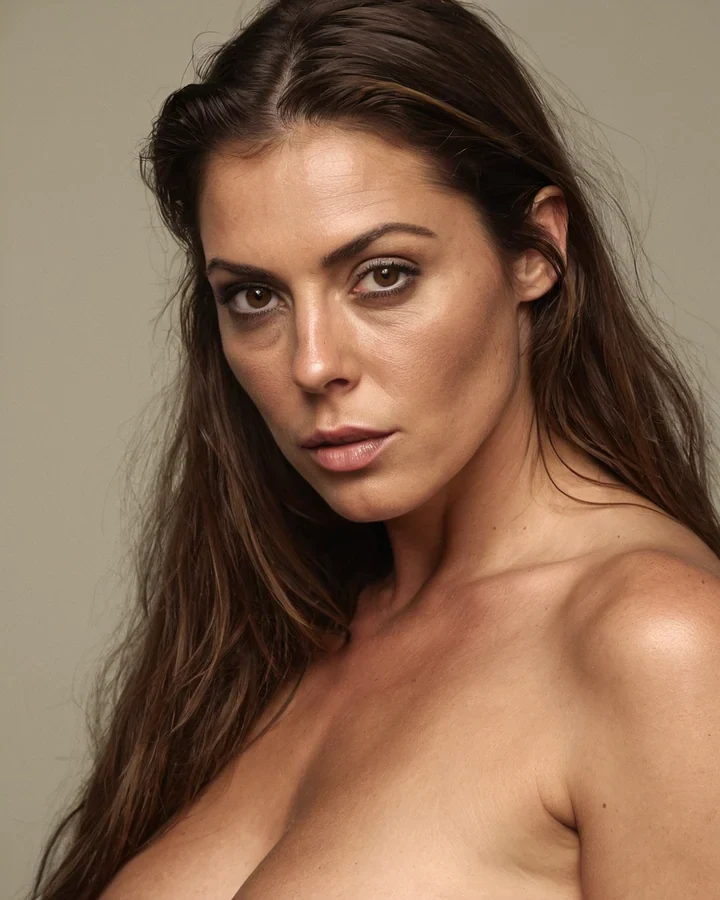
Example results in the style this tool produces, not a single verified before-and-after run.
Worked example: turning a portrait into a wide banner
| Input | 1024x1280 portrait |
|---|---|
| Target | 1920x1080 banner |
| Cost | 5 credits |
| Method | One edge at a time |
The exact instruction
extend the scene 400px to the right only, continue the brick wall and the wet pavement, match the existing light direction and colour temperature
What comes back
Extending one edge at a time keeps the invention bounded. The model continues what is already at that border, so a wall running to the edge continues convincingly.
When it goes wrong
| What you see | Why | What to change |
|---|---|---|
| It invented a limb | You expanded toward a cropped figure | Expand away from your subject |
| New area does not match | Expanded too far in one pass | Work in smaller steps and check each |
| Everything went soft | Expanded more than half the original | Recompose instead, or generate wider from the start |
AI outpainting to expand an image: common questions
How far can I expand a photograph?
25% a side reads as part of the original. 50% is the practical ceiling, and beyond that the new area is invention rather than continuation.
Can I expand an already-upscaled image?
You can, but it is the wrong order - It costs more and the seam holds worse. Expand first, enlarge once at the end.
Why did it invent an extra limb?
Because a limb was cut off at the edge it was told to extend. The model continued what it saw. Expand a different side, or re-render wider.
Does expanding change the original part of the frame?
No. The existing pixels are kept and new area is generated around them.
Where to go next
This tool is usually used alongside compose a cover, upscale afterwards and two-person compositions.